Chat#
Scout Chat provides an AI-powered interface for natural language querying of the Scout data lake. Ask questions in plain English and receive data-driven answers with direct access to your radiology report data.
Note
Chat is optional and may not be enabled in all deployments. If you don’t see Chat on the Launchpad, contact your administrator.
Current version: Scout Chat queries HL7 radiology report data. Future versions will support DICOM metadata, pathology reports, and extracted features.
Overview#
Scout Chat is powered by Open WebUI with Ollama:
Natural language SQL: Converts questions into SQL queries against the data lake
Scout Explorer model: Custom-configured LLM that understands the Scout data schema
Real-time data access: Direct Trino connection via MCP (Model Context Protocol)
Context-aware responses: Understands Scout terminology, fields, and data structure
Getting Started#
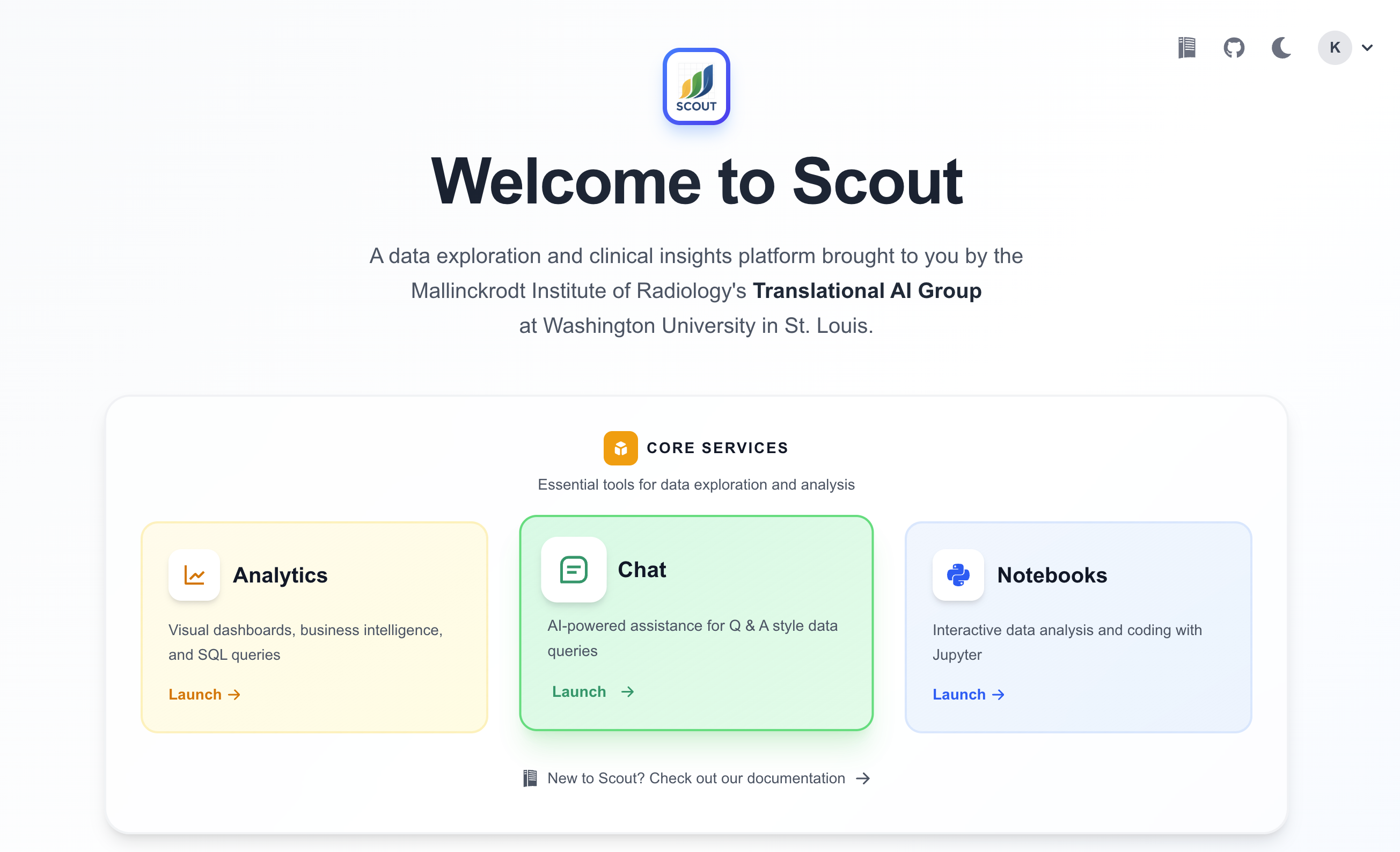
Navigate to the Scout Launchpad
Click the Chat card
Type your question in plain English
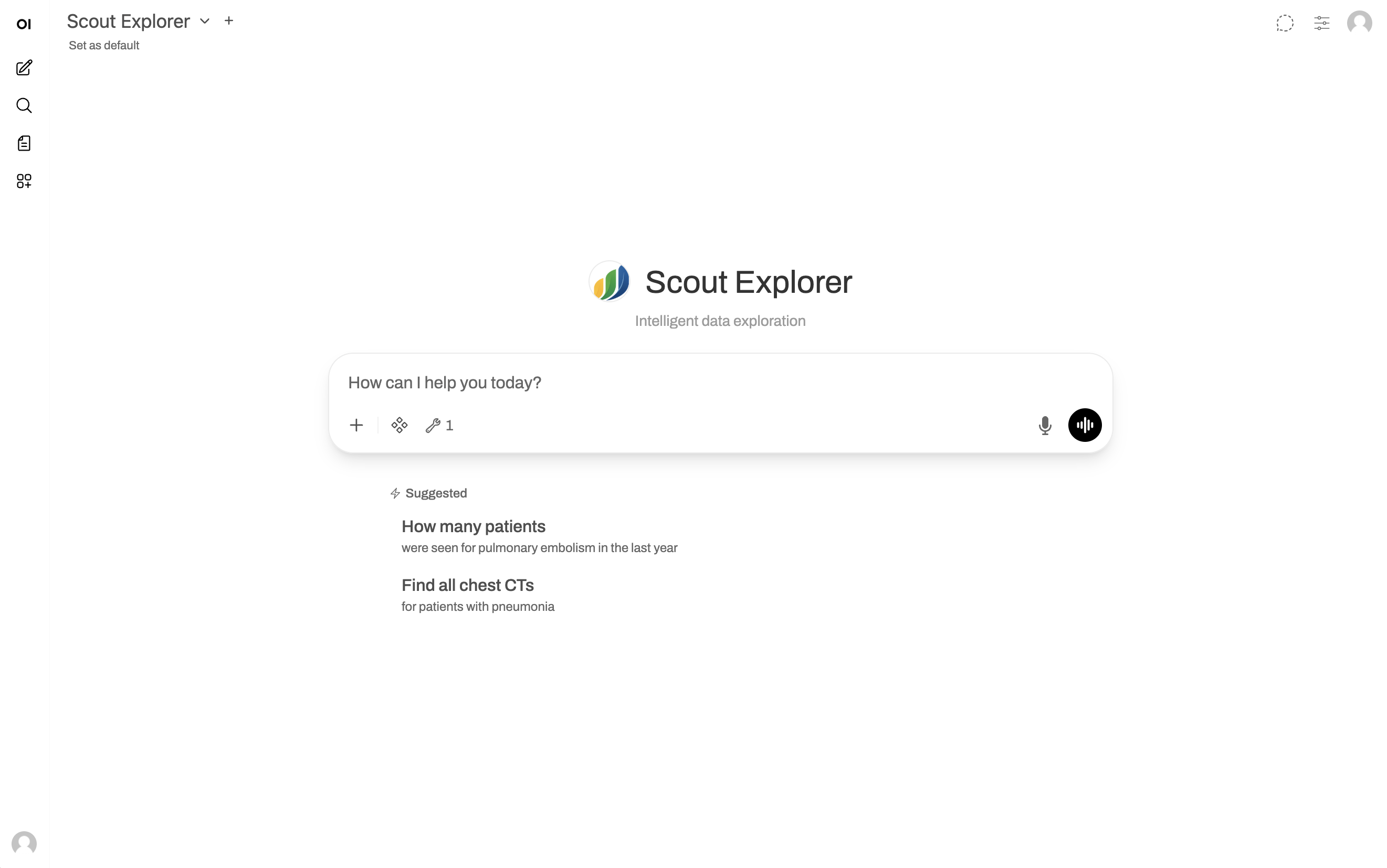
Press Enter to submit
The AI queries the database and provides an answer
Example Queries#
Research & Cohort Identification#
How many patients have both a chest CT and a lung nodule diagnosis?Find all patients with MRI reports mentioning "multiple sclerosis" in the findingsWhat's the age and sex distribution for patients with pneumonia diagnoses?List unique patients with both CT and PET scans in 2024
Operational & Trend Analysis#
How does CT volume compare this month vs last month?What's the average turnaround time by modality?Show me report volumes by month for the past year
Text Search & Exploration#
Find MRI reports mentioning "metastasis" in the findings sectionHow many reports contain "incidental" in the impression?Search for chest X-rays with "opacity" in the findings from the last 6 months
Understanding Chat Responses#
When you ask a question, Scout Chat:
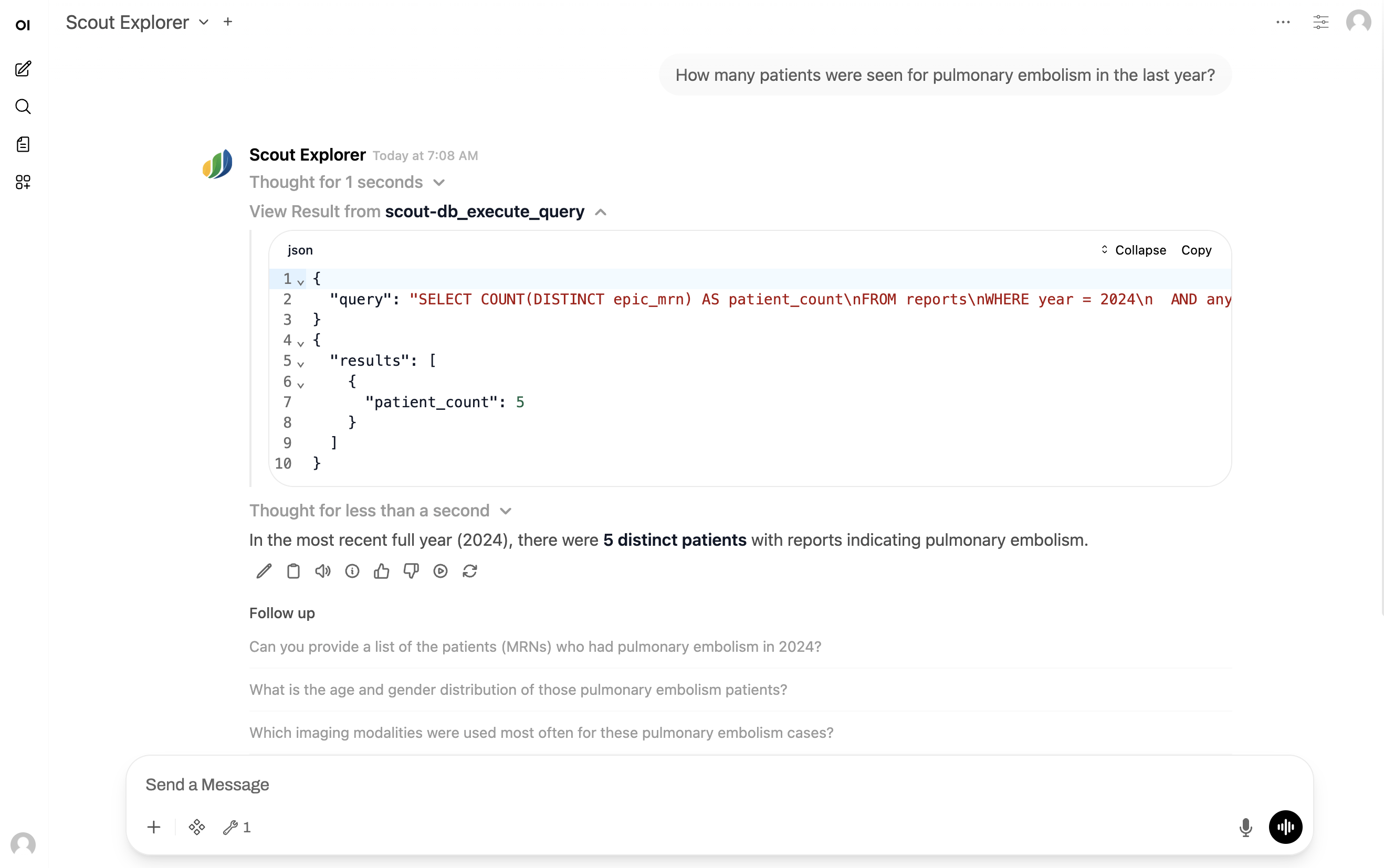
Interprets your question in its “Thinking” mode
Executes a SQL query via the Trino MCP tool (expandable to view)
Retrieves results from the Scout data lake
Analyzes the data and provides a natural language answer
Viewing the SQL Query#
Click the expandable View Result from scout-db_execute_query section to see the exact SQL query.
This is useful for:
Tips for Effective Queries#
Be Specific#
❌ Show me pneumonia cases
✓ How many patients have pneumonia mentioned in the impression, grouped by age decade?
Use Scout Terminology#
The AI understands the Scout data schema. Reference field names when relevant:
Modality: CT, MRI, X-ray, US, NM, PET, etc.
Report sections: impression, findings, addendum, technician note
Demographics: age, sex, race, zip code
Temporal: observation date, message date, turnaround time
Clinical: diagnosis codes, service name, study instance UID
Ask Follow-up Questions#
Scout Chat maintains conversation context:
User: How many patients have "pulmonary embolism" in the impression?
Chat: There are 1,234 unique patients with pulmonary embolism mentioned.

User: What's the age distribution?
Chat: [Shows breakdown by age group]

User: Filter to just CT angiography studies
Chat: [Shows 892 patients with CTA studies mentioning PE]
Specify Date Ranges#
How many reports from January 2024 to December 2024?
Show me the number of X-rays in the last 6 months
Request Tabular Data#
Give me a table of report counts by modality, sorted highest to lowest
List the top 10 diagnosis codes with their counts
For visualizations, copy results to Analytics.
Data Privacy and Security#
Authentication required: Keycloak authentication (same as other Scout services)
Read-only access: Chat cannot modify or delete data
External content blocked: Scout blocks loading images and resources from external websites
Conversation privacy: Chat history is stored on the server and associated with your user account. Other users cannot see your chats unless you share them.
Note
Admin visibility: Scout administrators have the ability to view user chat histories for quality assurance and support. Avoid including sensitive personal information in your conversations.
External Images and Links#
Scout Chat includes security protections that block external content. If the AI generates a response containing an image from an external service (such as a charting website), the image will not render.
Warning
Do not click links to external websites in chat responses.
LLM responses may contain links to third-party services. These links could potentially contain sensitive data from your query embedded in the URL. If you see a broken image or an external link, do not click it.
For visualizations, copy the data to Analytics and build charts there.
Chat Sharing#
You can share chat conversations with other authenticated Scout users via share links.
Warning
PHI Risk: Chat conversations may contain Protected Health Information (PHI) from query results. Before sharing or downloading chats, ensure you are complying with your institution’s data governance policies and HIPAA requirements.
Downloading Chats#
Warning
Do not download chats containing PHI unless you have appropriate authorization and secure storage. Downloaded chat files may contain patient identifiers, diagnosis codes, and other sensitive information extracted from query results.
Because of PHI concerns, we recommend using chat sharing instead of download when you can. If this is not suitable for your use case, consider whether Scout Analytics or Scout Notebooks would meet your need.
Limitations#
Data Scope#
Scout Chat queries data in the Scout data lake only.
Current version:
HL7 radiology report data only
No PACS image access (DICOM support planned)
No external database queries
Query Complexity#
For advanced analysis, consider:
Model Limitations#
The AI may occasionally misinterpret questions or generate incorrect queries. Always review the SQL in the View Result from scout-db_execute_query section to verify it matches your intent.
Troubleshooting#
Chat Service Not Available#
If Chat doesn’t appear on the Launchpad, the service may not be enabled in your deployment. Contact your Scout administrator.
No Response or Errors#
Be patient — GPU resources may be limited with concurrent users
Retry — Occasionally the model makes formatting errors
Log out and back in — Refreshes your session
Contact admin — If issues persist
Unexpected Results#
Expand View Result from scout-db_execute_query to review the SQL query
Verify your question was specific and unambiguous
Check if the data contains what you expect
Rephrase with more specific criteria
Tool Not Working#
If you see Trino tool errors, contact your administrator to verify the MCP tool configuration.
Additional Resources#
Data Schema: Available fields and their meanings
Services Overview: Analytics, Notebooks, and other Scout services
Tips & Tricks: General Scout usage tips