Tips & Tricks#
This page provides helpful tips for using Scout services effectively.
Analytics (Superset)#
Query Performance#
Use partitioned columns: Filter on the
yearcolumn (derived frommessage_dt) for better query performanceLimit result sets: Add
LIMITclauses to large queries during explorationLeverage Delta Lake columnar format: Select only the columns you need rather than
SELECT *Use SQL Lab for testing: Test and refine queries in SQL Lab before creating visualizations
Creating Dashboards#
Start with the Scout Dashboard: The pre-built Scout Dashboard provides a good template for creating custom dashboards
Use filters: Add dashboard-level filters to make dashboards more interactive
Save queries as datasets: Complex queries can be saved as virtual datasets for reuse across multiple charts
Chat#
Getting Better Results#
Be specific: Include details like modality, date ranges, or specific fields in your questions
Use Scout terminology: Reference field names from the data schema for more accurate queries
Check the SQL: Expand the “View Result from scout-db” section to verify the AI generated the correct query
Iterate: Ask follow-up questions to refine results
When to Use Chat vs. Analytics vs. Notebooks#
Use Chat for: Quick exploratory questions, ad-hoc analysis, learning about the data
Use Analytics for: Creating visualizations, building dashboards, sharing results with others
Use Notebooks for: Complex transformations, statistical analysis, machine learning, custom exports
Notebooks (JupyterHub)#
PySpark Best Practices#
Filter early: Apply filters as early as possible to reduce data processing
Use array functions: Filter array columns with
F.exists():from pyspark.sql import functions as F df.filter(F.exists("diagnoses", lambda x: x.diagnosis_code == "J18.9"))Leverage convenience columns: Use
epic_mrnor dynamically-created ID columns instead of parsingpatient_idsarrayCache frequently-used DataFrames: Use
.cache()on DataFrames you’ll query multiple times
Working with Report Sections#
The Delta Lake schema includes parsed report sections:
report_section_findingsreport_section_impressionreport_section_addendumreport_section_technician_note
Use these for targeted text analysis instead of parsing report_text.
Saving Intermediate Results#
Jupyter notebook servers automatically shut down after a configurable period of runtime (2 days by default). You’ll see the specific timeout for your deployment displayed in a notification banner when you start your server:
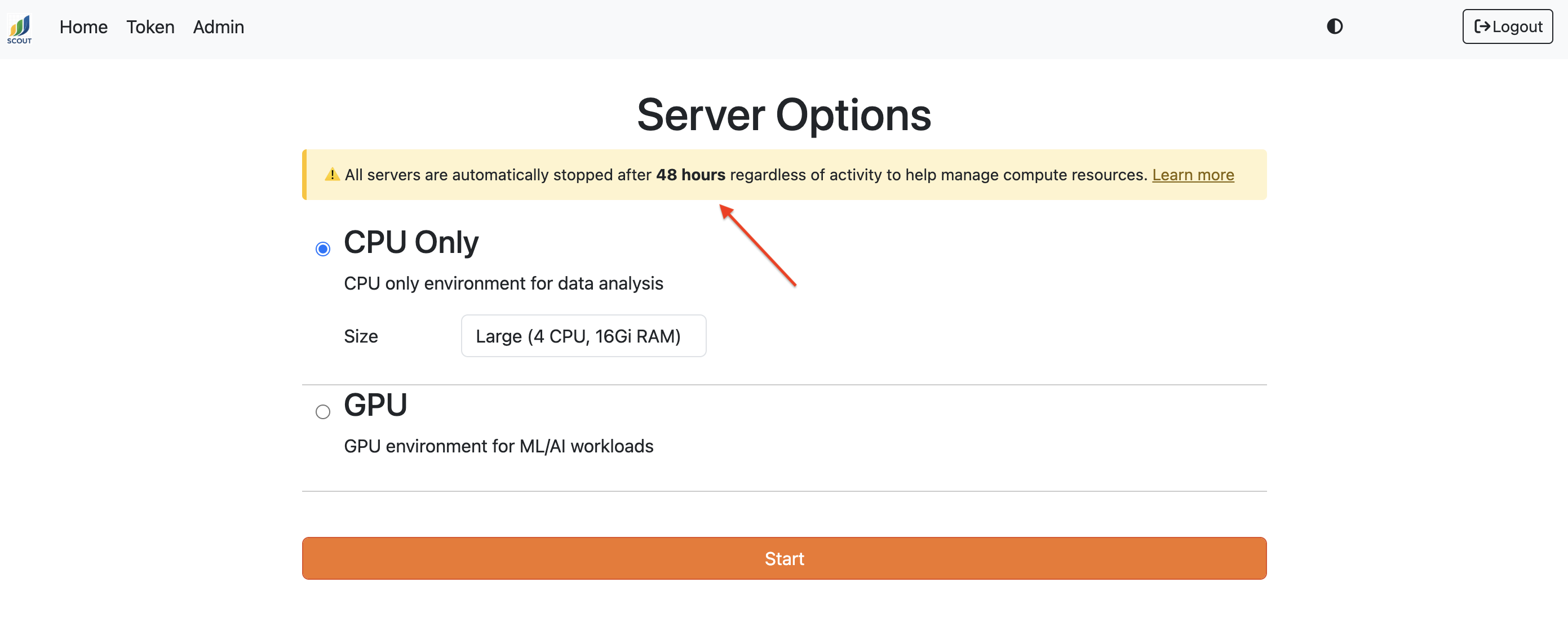
Your notebook files and home directory (/home/jovyan/) persist, but in-memory variables are lost. To avoid potentially losing any important work, save notebooks frequently (Ctrl+S / Cmd+S) and save large DataFrames and intermediate results to disk.
Spark DataFrames (Parquet):
# Save after expensive computation
df.write.parquet('/home/jovyan/checkpoints/results.parquet')

# Resume later
df = spark.read.parquet('/home/jovyan/checkpoints/results.parquet')
Pandas DataFrames:
# CSV (human-readable)
df.to_csv('/home/jovyan/checkpoints/results.csv', index=False)
df = pd.read_csv('/home/jovyan/checkpoints/results.csv')

# Parquet (faster, preserves types)
df.to_parquet('/home/jovyan/checkpoints/results.parquet')
df = pd.read_parquet('/home/jovyan/checkpoints/results.parquet')
Python objects (pickle):
import pickle

# Save any Python object
with open('/home/jovyan/checkpoints/my_data.pkl', 'wb') as f:
    pickle.dump({'results': results, 'config': config}, f)

# Load it back
with open('/home/jovyan/checkpoints/my_data.pkl', 'rb') as f:
    data = pickle.load(f)
ML models:
# scikit-learn
import joblib
joblib.dump(model, '/home/jovyan/models/classifier.joblib')
model = joblib.load('/home/jovyan/models/classifier.joblib')

# PyTorch
torch.save(model.state_dict(), '/home/jovyan/models/checkpoint.pth')
model.load_state_dict(torch.load('/home/jovyan/models/checkpoint.pth'))
Monitor (Grafana)#
Viewing Dashboards and Logs#
Accessing Scout Dashboards: Navigate to Dashboards > Scout in Grafana
Accessing Service Logs: Go to Drilldown > Logs section or use Explore > Loki
Adjust Time Ranges: Modify the time range to focus on specific periods. Services without activity during the selected time range will not appear
Click on Legends: Click legend entries to isolate specific metrics or log entry types (e.g., filter to only errors)
Dashboard Variables#
Many dashboards include variables (namespace, node, pod, etc.) at the top
Use these to filter data for targeted analysis
Multiple selections are often supported
Correlating Logs Across Services#
To view logs from multiple services in a single view:
In the Logs panel, select “Include” for each service you want to view
Click “Show Logs”
Search, filter, and identify patterns across services
This is especially useful for debugging issues that span multiple components.
Disk Usage Monitoring#
Kubernetes PV/PVC Metrics: May not work in on-premises deployments
Alternative: Use the Node Exporter dashboard to monitor disk usage for each node and mount point
Saving Dashboard Changes#
Provisioned dashboards (in Dashboards > Scout) cannot be modified directly in Grafana
To make changes:
Save the dashboard as a new one with a different name
Make your modifications
Export the updated JSON
(Admins) Update the dashboard configuration in the Scout repository for future deployments
General Tips#
Keyboard Shortcuts#
Superset SQL Lab:
Ctrl/Cmd + Enter: Run queryCtrl/Cmd + Shift + Enter: Run selected text
JupyterHub:
Shift + Enter: Run cell and move to nextCtrl + Enter: Run cell and stayEscthenA: Insert cell aboveEscthenB: Insert cell below
Exporting Data#
From Analytics: Click Export in query results (CSV, Excel, etc.)
From Chat: Copy data from chat responses, or use the SQL query in Analytics/Notebooks for larger exports
From Notebooks: Use
.toPandas().to_csv(),.write.parquet(), or other PySpark export methods
Getting Help#
Documentation: Review the data schema, services, and ingestion docs
Issue Tracking: Report bugs or request features via Jira
Admin Tools: Contact your Scout administrator for access to Monitor, Orchestrator, or User Management interfaces